Settings Reference
Complete reference for every field on the Stripe Portal admin page — what it controls, validation rules, default value, and the wp_options key it writes to.
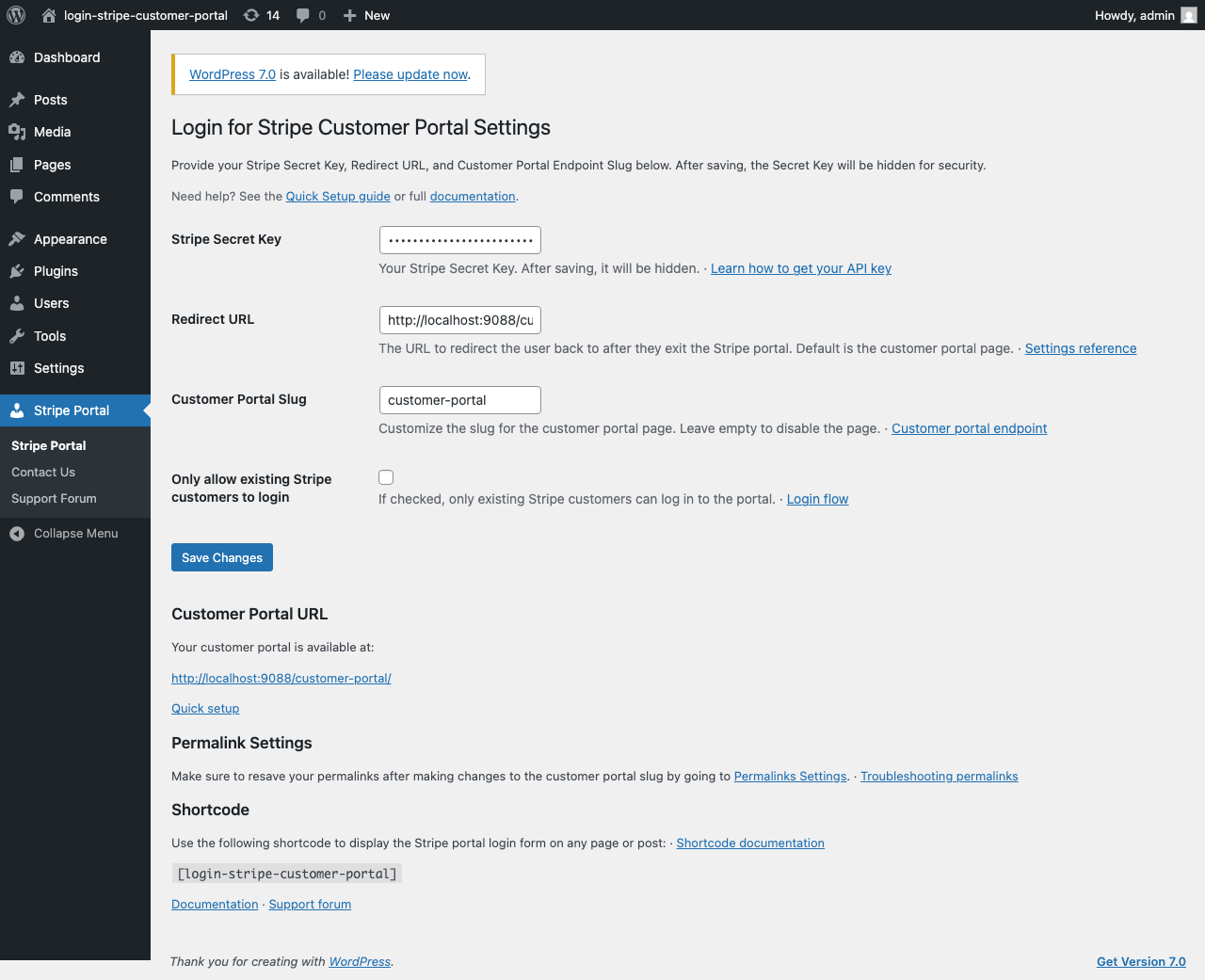
Configure the plugin under Stripe Portal in the WordPress admin (/wp-admin/admin.php?page=login-stripe-customer-portal).
Each setting includes contextual Learn more links to this documentation. A Documentation and Support forum footer appears at the bottom of the page.
Stripe Secret Key#
| Option key | lscp_stripe_api_key |
| Field type | Password (masked after save) |
| Required | Yes |
Your Stripe Secret API key (sk_test_... or sk_live_...). Get it from Stripe Dashboard → Developers → API keys.
After you save, the key is displayed as a fixed-length mask (12 ● characters) in the admin — the mask never reveals the real key length via view source. Leaving the field masked on a subsequent save keeps the existing stored key.
Never share your Secret key or commit it to version control. The settings page enforces the manage_options capability, so only WordPress administrators can view or change it.
Redirect URL#
| Option key | lscp_stripe_redirect_url |
| Field type | URL |
| Default | Customer portal page URL (/{slug}/) |
The URL Stripe sends customers to when they exit the Customer Portal (return_url on the Billing Portal session).
Intended behavior: After a customer finishes in the portal, they return to this URL — often your portal login page or a "Thank you" page on your site.
Customer Portal Slug#
| Option key | lscp_stripe_endpoint_slug |
| Field type | Text (sanitized as slug) |
| Default | customer-portal |
The URL slug for the dedicated login page. With default settings, the login page is:
https://yoursite.com/customer-portal/
Leave empty to disable the dedicated endpoint (shortcode-only mode). Input is sanitized through sanitize_title and capped at 64 characters to keep the rewrite engine bounded.
After changing the slug, go to Settings → Permalinks and click Save Changes to flush rewrite rules.
Only allow existing Stripe customers to login#
| Option key | lscp_stripe_validate_existing_customers |
| Field type | Checkbox (0 or 1) |
| Default | Off (0) |
When checked:
- The plugin checks Stripe for a customer with the submitted email before sending a magic link.
- If no customer exists, no email is sent.
- The visitor sees the conditional message: “If your email address is associated with a Stripe customer, a login link is on its way. Please check your inbox.” — identical for known and unknown emails, so the form does not reveal Stripe customer existence.
When unchecked (default):
- Any valid email can request a login link.
- If no Stripe customer exists for that email, the plugin creates a new Stripe Customer when the magic link is redeemed.
- The visitor sees a direct message: “A login link is on its way. Please check your inbox for the link to access your Stripe Customer Portal.” — no longer the misleading “If your email address is registered…” wording from earlier versions.
Either mode is paired with a per-email + per-IP rate limiter (5 requests / 10 minutes) so the form can’t be abused as a mail relay or as an enumeration oracle against your Stripe customer list. See Security and Privacy.
Information shown after save#
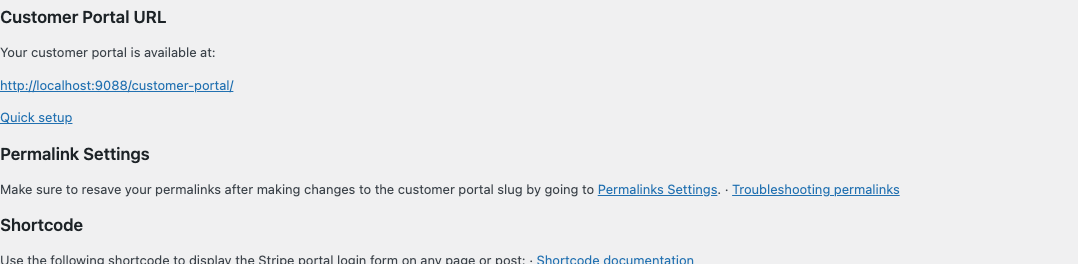
Below the settings form, the admin page displays:
- Customer Portal URL — Direct link to your login endpoint (when slug is set).
- Permalink reminder — Link to Settings → Permalinks.
- Shortcode —
[login-stripe-customer-portal]for embedding the form elsewhere.