Shortcode
Drop [login-stripe-customer-portal] on any page, post, or widget area to render the same magic-link login form as the dedicated endpoint, styled for inline embedding alongside your theme content.
Shortcode#
[login-stripe-customer-portal]Example#
- Create or edit a WordPress Page.
- Add a Shortcode block (or Classic block) with
[login-stripe-customer-portal]. - Publish the page.
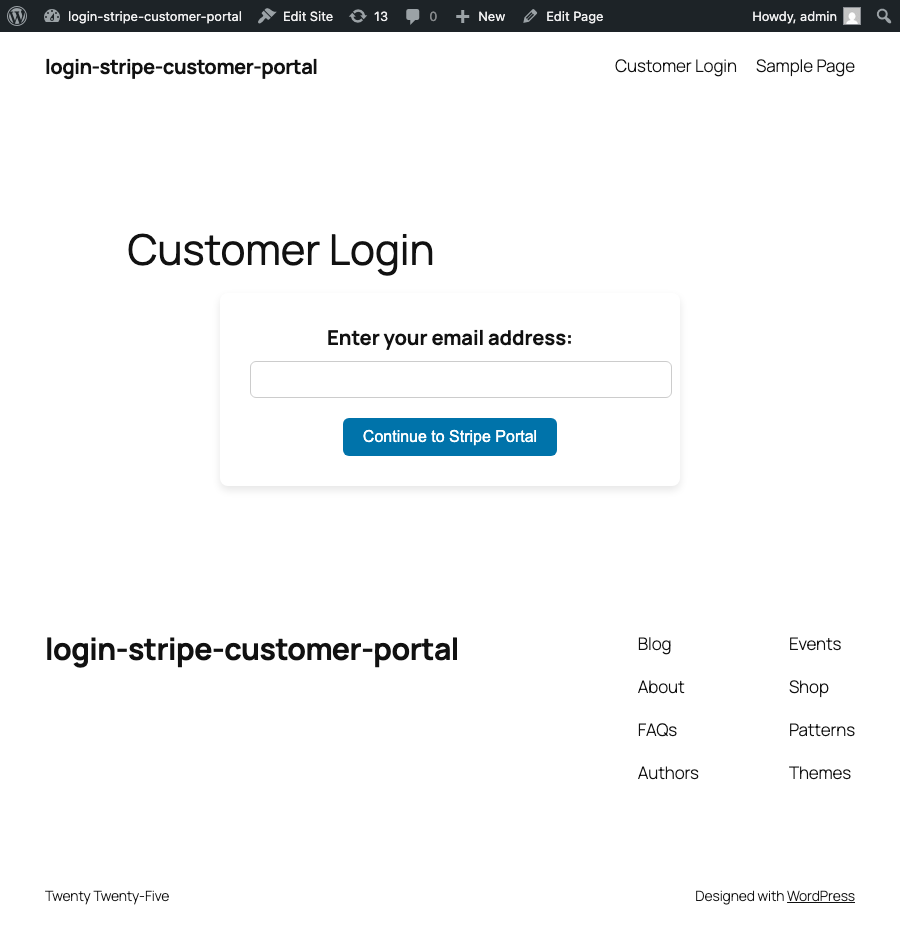
Customers visiting that page see the same email form as the dedicated endpoint, styled for inline embedding (white card, transparent outer background).
Behavior#
- Uses the same nonce, email field, rate limiter, and POST handling as the Customer Portal Endpoint.
- Form submission is processed on
template_redirect, so it works on any front-end URL containing the shortcode. - After submit, the plugin shows a standalone confirmation screen via
wp_die()with the mode-aware success message — not inline on the embedding page. This is intentional so the same handler can serve both the dedicated endpoint and any page that embeds the shortcode. - Each render emits a per-instance unique
idfor the email input (viawp_unique_id()). Multiple shortcode instances on a single page no longer produce duplicate IDs that would break<label for>binding, HTML5 validation, and screen-reader navigation.
If you need the confirmation message to appear within your page layout, wrap the shortcode in a custom template or page that handles the post-submit state itself — the standalone wp_die() screen is a deliberate UX choice, not a missing feature.
Endpoint vs shortcode#
| Dedicated endpoint | Shortcode | |
|---|---|---|
| URL | yoursite.com/{slug}/ | Any page you choose |
| Layout | Full-page, gray background | Inline card on your theme |
| Best for | Standalone "Account" or "Billing" page | Login section on Contact, Support, or Dashboard page |
You can use both at the same time.